
The scene, before you step into it
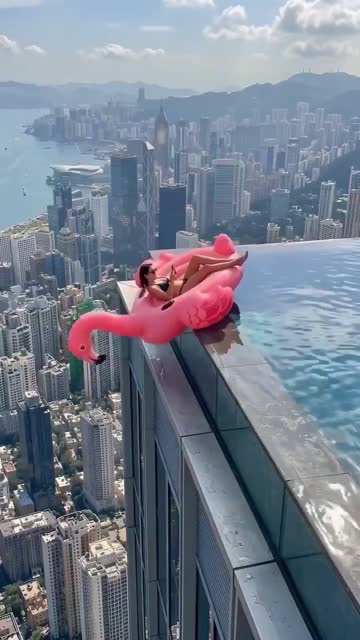
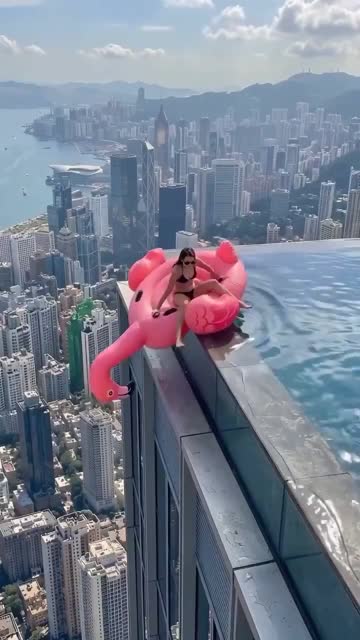
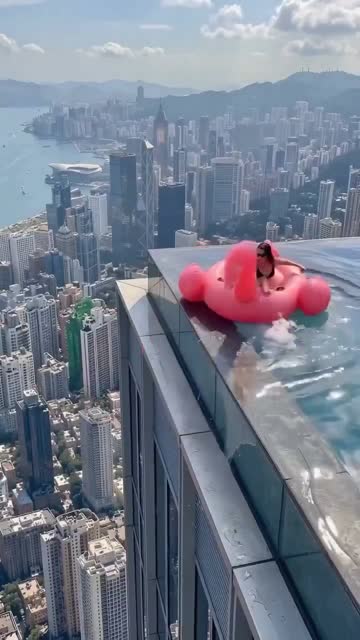
The pink flamingo is easy to spot. What makes this scene work is the gap between what the person notices and what the viewer can see. The rider looks comfortable; the edge of a rooftop pool is getting uncomfortably close. You can understand the problem before anything dramatic happens.
Our Flamingo Float AI scene follows that small story: one person on the float, a slow approach, a hand pushing it back, a reaction, and another stretch of drifting. The pool and city give the movement its scale. The pause after the push gives the person time to register what happened.
Watch the complete example before uploading. Different videos under the Flamingo Float name use different endings, including tipping or falling. The example on this page shows the scene you are choosing here. If you arrived after seeing another version, our trend guide explains the differences.
Start with one photo
Choose the person
Select a clear photograph of yourself or an adult who has agreed to appear. One visible face keeps the choice straightforward. You do not need to photograph a swimming pool, buy a float, or act out the movement. Your portrait supplies the appearance reference; the scene supplies the setting and action.
Check the scene and cost
Look at the preview, then read the generation cost displayed in the tool. Make sure the selected photo is the one you intended to use. A quick check now is easier than discovering that you uploaded a screenshot containing several people after the job has started.
Create, watch, and save
Start generation and follow the status shown on the page. When the result is ready, play it through before downloading. Check the face, the moment the hand meets the float, and the ending. Save a version you like before experimenting with another photo. For a fuller walkthrough, follow how to make a Flamingo Float AI video.
Make the face easy to read
A good portrait gives the generator something clear to work from. Choose even lighting, visible eyes, and enough detail to distinguish the face without zooming into a tiny part of the image. An ordinary photograph can be more useful than a heavily filtered selfie that changes your features.
The rider appears within a wider pool scene, so a face already lost in a distant group photo is a difficult starting point. Crop away other people while leaving the whole head visible. Avoid cutting through the chin or hiding the hairline under a graphic.
You can upload a portrait taken indoors; the photograph does not need to match a holiday setting. Focus on whether the person is recognizable. If you are choosing between two pictures, our Flamingo Float photo guide shows what to compare before spending credits.
A recognizable scene, a new performance
Flamingo Float AI generates moving images from your reference. It does not simply place a still photograph over a video. The rider turns, the float changes position, and the water and hand need to remain connected as the scene unfolds. Those changes are also where imperfections can appear.
Expect the broad sequence shown in the example, with variation in individual details. A facial expression may change. A hand can look awkward for a moment. Clothing and background features may differ from what you imagined. A familiar scene does not mean every frame will be identical to another person's result.
Watch for continuity: does the same person remain on the float, does the push visibly explain its movement, and does the ending follow from what happened before? Those questions are more useful than judging only the prettiest frame. The Flamingo Float AI template guide explains which parts define the scene.
Watch the whole example
A poster image can show the pink float and the skyline. It cannot show whether the hand arrives at the right moment or whether the person changes appearance halfway through. Play a complete generated example before deciding whether this is the effect you want.
On the examples page, look at the portrait beside its resulting video. Then watch once for the person and once for the movement. Notice the approach to the edge, contact with the float, the reaction, and the final drift. You may care more about a recognizable face than a particularly dramatic skyline.
Our Flamingo Float AI examples page is designed for that closer look. If your own finished clip has a problem, the video quality guide helps you describe it before deciding whether another attempt is worthwhile.
Who would be on your float?
You, checking just one more message
The distracted rider gives you a simple joke to work with. Pair your clip with a short line about checking work messages on holiday or getting too comfortable with your plans. Let the approaching edge do most of the storytelling; a long explanation can hide the moment people came to see.
A friend who gets the joke
With their permission, use a friend's portrait and choose a caption that fits your shared sense of humor. Keep the joke about the situation. Showing them the result before posting is a sensible way to check that the expression, outfit, and caption feel right to them.
A small holiday fantasy
You can also enjoy the scene without turning it into a public post. Save your clip, send it to someone who would appreciate it, or keep it as a playful version of a rooftop pool day. If you do post, the caption guide offers short lines that leave room for the video.
Check the cost before you create
You can read the guides and watch public examples without purchasing a video. Generating a Flamingo Float AI clip uses paid credits. The tool shows the current cost before you start; check that amount and the purchase details rather than assuming that watching a preview includes a free render.
A new attempt may use additional credits. If something goes wrong, read the job status before starting again. A completed video with an unwanted detail is a different situation from a failed generation. Our free and cost guide explains the distinction without hiding the paid step.
A few things to know
Is this the “Hey Bro, Thank You Bro” video?
Those phrases are associated with versions of the rooftop flamingo scene. Check our sample for the exact action offered here. To identify the dialogue or backing track in a particular post, use the Flamingo Float sound guide.
Do I have to write a prompt?
No prompt is required for the preset on this page. Choose your portrait and follow the tool. If you prefer building a scene in another video tool, our prompt guide provides original directions you can adapt.
Will the result look exactly like me?
A clear reference helps, but likeness can vary as the head turns or becomes small in the frame. Watch the full result and decide whether it represents you well enough to share.
Can I upload a group photo?
This scene is intended for one person. Choose a solo portrait or crop the intended person clearly before uploading. A group photograph makes the appearance reference less clear.
Does it include the original song?
Do not assume that a reference video's soundtrack comes with your generated clip. Listen to the result and check the available audio information. You can add suitable audio when editing or posting, subject to the platform's usage terms.
Is the pool scene a real recording of me?
No. Your result is AI-generated. Present it as a generated video when you share it; you do not need to visit a rooftop pool or perform the scene yourself.
Ready for your Flamingo Float AI video?
Choose a portrait where you look like yourself. Watch the scene through to the end, check the displayed cost, and see how your pool day turns out.